
Search Queries

Search queries are a text-based language for filtering records. They are efficient, expressive, and automation-friendly.
- Searching records
- Filters
- Search indexes
- Search facets
- Indexing freshness
- Autocompletion
- Deep Search
- Boolean Groups
- Sorting
Using queries, search functionality is consistent between automations, worklists, data queries, and API requests.
As text, queries can be built dynamically using automation scripting syntax. They also simplify many complex operations that would otherwise be tedious (or impossible) to automate or represent with web-based forms.
To give you an idea of what you can do with queries, here's an example query that returns open tickets in the Sales or Support group that are less than a month old:
status:open created:"-1 month" group:(sales OR support)In the following sections we'll cover query syntax and advanced functionality.
Searching records
You can use the global search menu to filter any record type:
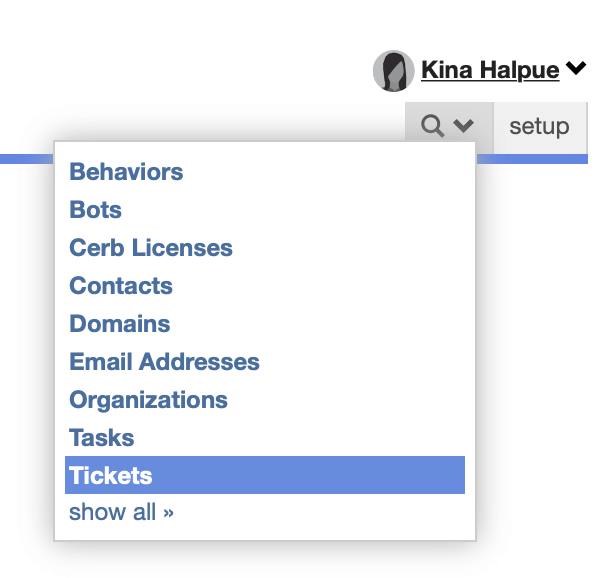
The magnifier in the top navigation menu opens it, and it's there for every worker. You can also open it with the / keyboard shortcut, as long as Keyboard shortcuts are enabled in your preferences.
Filters
A query is a list of filters separated by a space. Each filter uses the format:
filter:expressionThe possible expressions depend on the type of filter:
Text
These expressions can be used on text-based filters.
Term
Simple text (without spaces) can be used as the entire expression:
firstName:KinaPhrases
Enclose phrases in double quotes ("):
subject:"This phrase contains spaces"Wildcards
Use asterisks (*) to denote wildcards:
mask:abc*Sets
Find records that match any of the given values:
color:[red,green,blue]Negation
Prefix an expression with an exclamation point (!) to negate it. This returns any records that don't match.
status:!openFulltext
Many records provide a default full-text filter that's used when you type an expression without specifying a filter.
This is a more efficient way to search records with a large amount of text (e.g. email messages, comments).
Terms
By default, records will be returned if they match all of the given terms.
bug bluetooth reportPhrases
Enter text within quotes to search for exact phrases:
"bug report"Mixing terms and phrases
content:("an exact phrase" other terms)Negation
text:!(not these words)Numbers
These expressions can be used on numeric filters.
Equal
To filter by records with an exact numeric value, use a number as the expression:
age:35Not Equal
Find all records that don't match a value by prefixing the expression with an exclamation point (!):
priority:!1Greater than
To filter by records with a value greater than the expression, use > or >=:
age:>21Less than
To filter by records with a value less than the expression, use < or <=:
order:<=100Between
Find records with a value within a range by using ...:
importance:25...75Sets
Find records that match any of the given values:
importance:[0,50,75]Booleans
These expressions can be used on boolean filters.
True
To filter for records with a true boolean value, you can use the expressions:
yesytrue
checkbox:yFalse
To filter for records with a false boolean value, you can use the expressions:
nonfalse
isAdmin:nDates
These expressions can be used on date-based filters.
Since
To filter by records with a date after a given point in time:
created:todaycreated:"-1 month"created:"2018-01-01"created:"January 1 2018"created:"first day of this month"Between
To filter by records with a date within a given range, provide two dates separated by the word to:
created:"today to now"created:"January 1 to June 30"created:"-1 year to -6 months"created:"big bang to first day of this month"Advanced
Date-based filters may use an optional advanced parameterized expression, with the format:
created:(since:"-1 week" until:now months:Jan,Feb,Mar days:Weekdays times:9a-5p)The since: option sets the beginning of the date range (default big bang).
The until: option sets the end of the date range (default now).
The months: option accepts a comma-delimited list of months to include within in the range (default everything). You can use any unique prefix on English months of the year (e.g. Ja,F,Mar, o,n,d, Jun,Jul).
The weeks: option accepts a comma-delimited list of weeks to include within in the range (default everything). Where Sunday is the first day of the week (e.g. 00 to 53).
The days: option accepts a comma-delimited list of days to include within in the range (default everything). You can use aliases for weekdays and weekends, and any unique prefix on English days of the week (e.g. Mon,Wed,Fri, m,w,f, thu,f).
The dom: option accepts a comma-delimited list of days of the month to include within in the range (default everything), from 1 to 31.
The times: option accepts a comma-delimited list of time ranges to include for the given days (e.g. 8a-noon,1-6p). For instance, this makes it much easier to query only working hours within a date range.
Nullness
You can match records by having, or not having, any value for a particular filter.
This is particularly useful for custom fields.
Null
Use the expression null to find records without any value set:
sla.level:nullNot null
Use the expression !null to find records with any value set:
checkbox:!nullChoosers
Chooser filters match fields that contain record IDs.
By convention, these filter names usually have an .id suffix (e.g. bucket.id:).
Chooser filters support all numeric expressions.
ID
To find records with a single matching record ID:
group.id:1IDs
To find records matching any of a list of record IDs:
group.id:[1,2,3]Links
These expressions can be used on link filters.
Link to record type
To filter by records with a link to a specific other record type, use its alias as the expression:
links:ticketDeep search by links
You can also use deep search to filter records based on any property of linked records.
Append the record type alias to links following a period (.), then the expression can be any search query for that record type:
links.ticket:(mask:a*)Watchers
These expressions can be used on watcher filters.
Names
To filter for records watched by specific workers, enter partial names:
watchers:kina,karlMe
To filter for records you're watching, use the me expression:
watchers:meAny
To filter for records watched by any workers, use the any expression:
watchers:anyNone
To filter for records not watched by any workers, use the none expression:
watchers:noneIDs
To filter for records watched by specific worker IDs, enter a comma-separated list of IDs:
watchers:1,2,3Parameterized metrics filters
Record types that expose a sparklines column also expose a matching filter backed by the same metrics. The filter name reflects what it measures – usage:, activity:, or records: – and it takes a parenthesized group of sub-filters.
Inside the group, each metric the record type publishes becomes a comparable field, and since: and until: bound the window:
usage:(runs:>0 since:today)
usage:(runs:>1000)
usage:(errors:>0)
usage:(received:>0 since:today)
activity:(failed:>0 since:-1week)
records:(count:>0)
Omitting since:/until: matches over all recorded history.
| Filter | Record types | Fields |
|---|---|---|
usage: |
automation, automation event, bot behavior, mailbox, mail routing rule, mail transport, service token, snippet, webhook listener | Varies by type – e.g. runs, errors, duration, received, deliveries, uses |
activity: |
queue | done, failed, open |
records: |
search index | Indexed record count |
Search indexes
A search index is a configurable, plugin-driven index over a specific record type – backed by a search extension (local full-text, TF-IDF, BM25, vector embeddings, Elasticsearch, Qdrant, Pinecone, etc.).
Each search index defines:
- A record type the index applies to
- A filter query that constrains which records are indexed (e.g. open tickets updated in the last year)
- A content template that formats the indexable text per record (e.g.
{{title}} {{content}}) - A priority that controls autocompletion ordering and default-filter behavior
Indexes are managed from the search index worklist (see Search Index records).
Using a search index in a query
Each search index exposes a filter: keyword in queries on its record type. For instance, a search index named by_title on tickets adds:
title:(urgent bug)When a search index has priority 0, it overrides the default filter when a query is typed without an explicit filter:. For example, the default ticket search could be routed to a by_part_number index instead of the built-in name search.
Wildcards
Append * to a term to match any token in the vocabulary starting with that prefix. The expansion is combined with OR:
title:(11.1* release*)Matches 11.1.6 released, 11.1 release, etc.
Stemming
Append ~ to a term to fuzzy-match its stem against the vocabulary. The expansion is combined with OR:
docs:(automate~)Expands to automate, automates, automation, automating, automated, etc.
Excluded terms
Prefix a term with - to exclude documents that match it. At least one included (non-excluded) term is required:
messages:(apple -tablet)Matches documents that contain apple while excluding any that also contain tablet. Excluded terms can be combined with wildcards and stemming.
Limiting and ranking results
The top: parameter limits results to the highest-scoring matches:
docs:(queue parallel top:10)Scores are computed using TF-IDF (or the strategy provided by the extension). Field-level boosting can be configured per search index via the content template (e.g. weight a document's title higher than its body).
Search facets
A facet is a named subset of a record type that gets its own entry in the Search menu, with its own icon and a filter that's always applied.
Some useful views are a filtered slice of an existing record type rather than a type of their own. AI workers are the obvious case: they are workers, but "Workers" isn't where you'd look for them. A facet named "Agents" puts them where you would.
Facets sit beside the real record types rather than nested in a submenu, because someone looking for "Agents" isn't thinking of it as a kind of worker.
Each facet keeps its own columns and sort, so customizing a facet doesn't disturb the parent record type's search.
Indexing freshness
A record can be re-indexed on demand rather than waiting for the next scheduler sweep, so a newly created record is findable right away. Bulk writers get a short defer window, so a large import doesn't re-index the same index once per record.
Autocompletion
As you type a query in the browser, autocomplete suggestions will assist you:
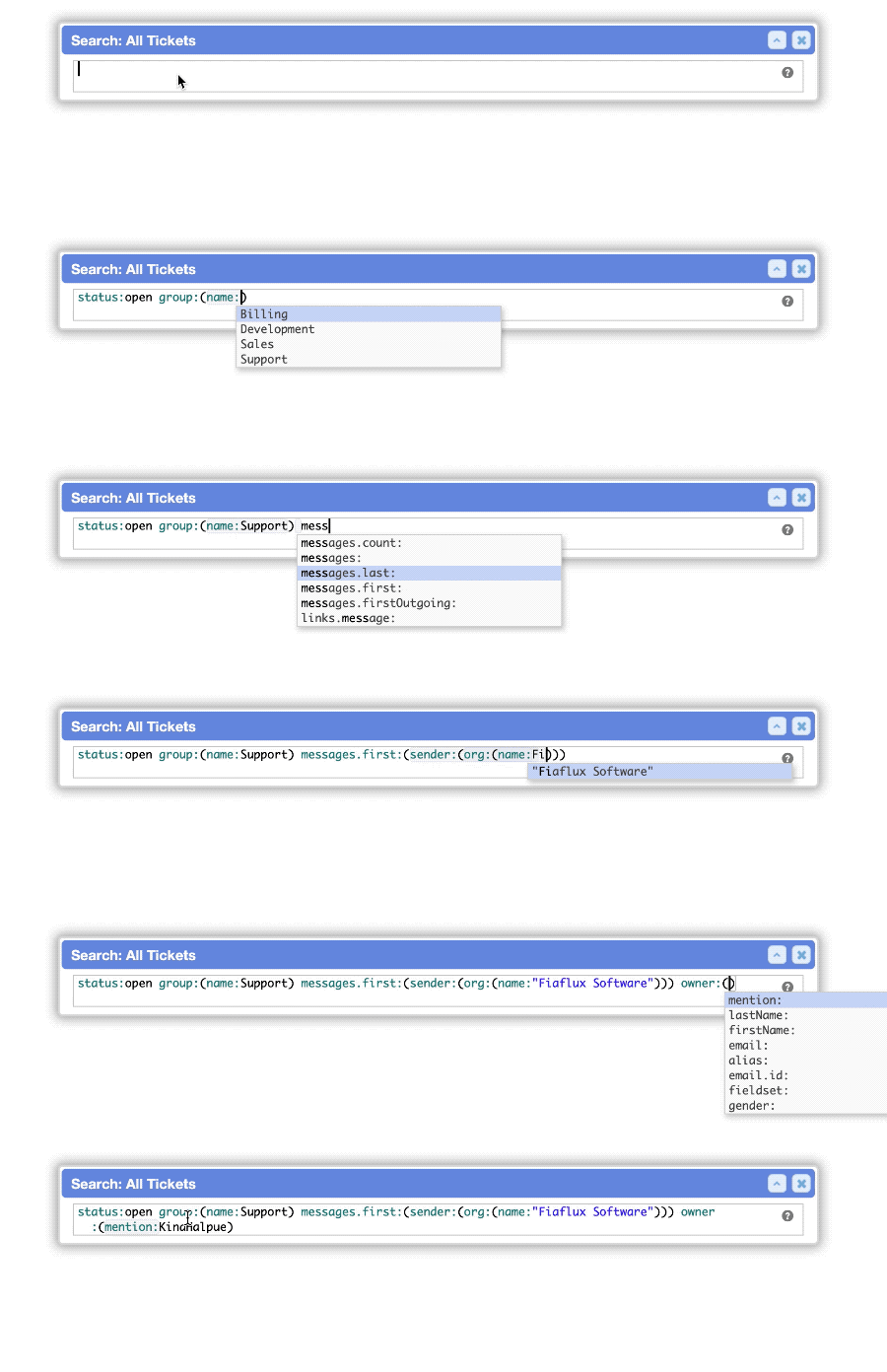
You can also manually open the suggestion menu with the <Control> + <Space> keyboard shortcut.
Deep Search
Some filters represent links between related records.
The expression for these filters is another search query based on the linked record type.
We refer to this as deep searching because you can chain these searches to any depth.
For instance, you can build a worklist of email messages sent by organizations in the health care industry, in Europe, and who also have at least one female contact with a name that starts with the letter 'M'.
This is one of the most powerful features in Cerb.
Deep search
When performing a deep search, your expression is another search query:
status:open group:(name:S*)The above example returns records that are open and in a group that begin with the letter 'S'.
Multiple deep searches
You can perform multiple deep searches at once:
owner:(gender:f)
group:(name:[support,sales])
org:(sla.plan:!null)
The above example returns records owned by a female worker, in the Support or Sales group, from an organization with any service level agreement (a custom fieldset picklist).
Deeper search
You can perform a deep search, within a deep search, within a deep search (ad nauseam):
messages.first:(
  sender:(
    org:(
      company.industries:"Health Care"
      region:Europe
      sla.plan:Priority
    )
  )
)
The above example returns records where the sender of the first message is a member of an organization in the health care industry in Europe with a "Priority" service level agreement.
Negation
You can also negate a deep search by prefixing an exclamation mark (!). This returns all records that don't match:
group:!(name:S*)The above example returns records that are in a group whose name doesn't start with the letter 'S'.
Boolean Groups
You can group filters into AND and OR (boolean) sets.
AND
Return records that match all of the given filters:
status:open AND created:today AND group:supportstatus:open created:today group:supportA query automatically uses AND by default if you specify multiple filters and separate them with a space.
OR
Return records that match any of the given filters:
owner.id:me OR owner.id:noneThe above example will return records that are "owned by the current worker" or "have no owner". It will exclude records owned by any other worker.
NOT
You can prefix a boolean filter group with an exclamation mark (!) to negate it:
!(mimetype:image/png size:<100KB)The above example will return everything except "PNGs smaller than 100KB".
Multiple boolean filter groups
You can mix boolean filter groups by using parentheses (()):
(mimetype:image/png size:>100KB) OR (mimetype:image/jpeg size:<100KB)The above example will return both "PNGs larger than 100KB" and "JPEGs smaller than 100KB".
A special sort: filter is available on every record type.
Sorting
Sort ascending
To sort matching records in ascending order (e.g. A-Z, oldest-newest), specify a filter name:
sort:subjectSort descending
To sort matching records in descending order (e.g. Z-A, newest-oldest), prefix the filter name with a dash (-):
sort:-updatedNested sorting
You can also sort by multiple fields by separating filter names with a comma (,).
For example, to return the most important and oldest issues first:
sort:-importance,createdIf multiple records shared importance:90, they would be sub-sorted by created so the oldest record is first and newest is last.
You can perform nested sorting to any depth, but results will take longer to return the deeper you go.